> ## Documentation Index
> Fetch the complete documentation index at: https://docs.valkyrieapp.azumo.com/llms.txt
> Use this file to discover all available pages before exploring further.
# AI assistant
> Fine-tune by chatting: attach a spreadsheet or text, say what you need, and confirm.
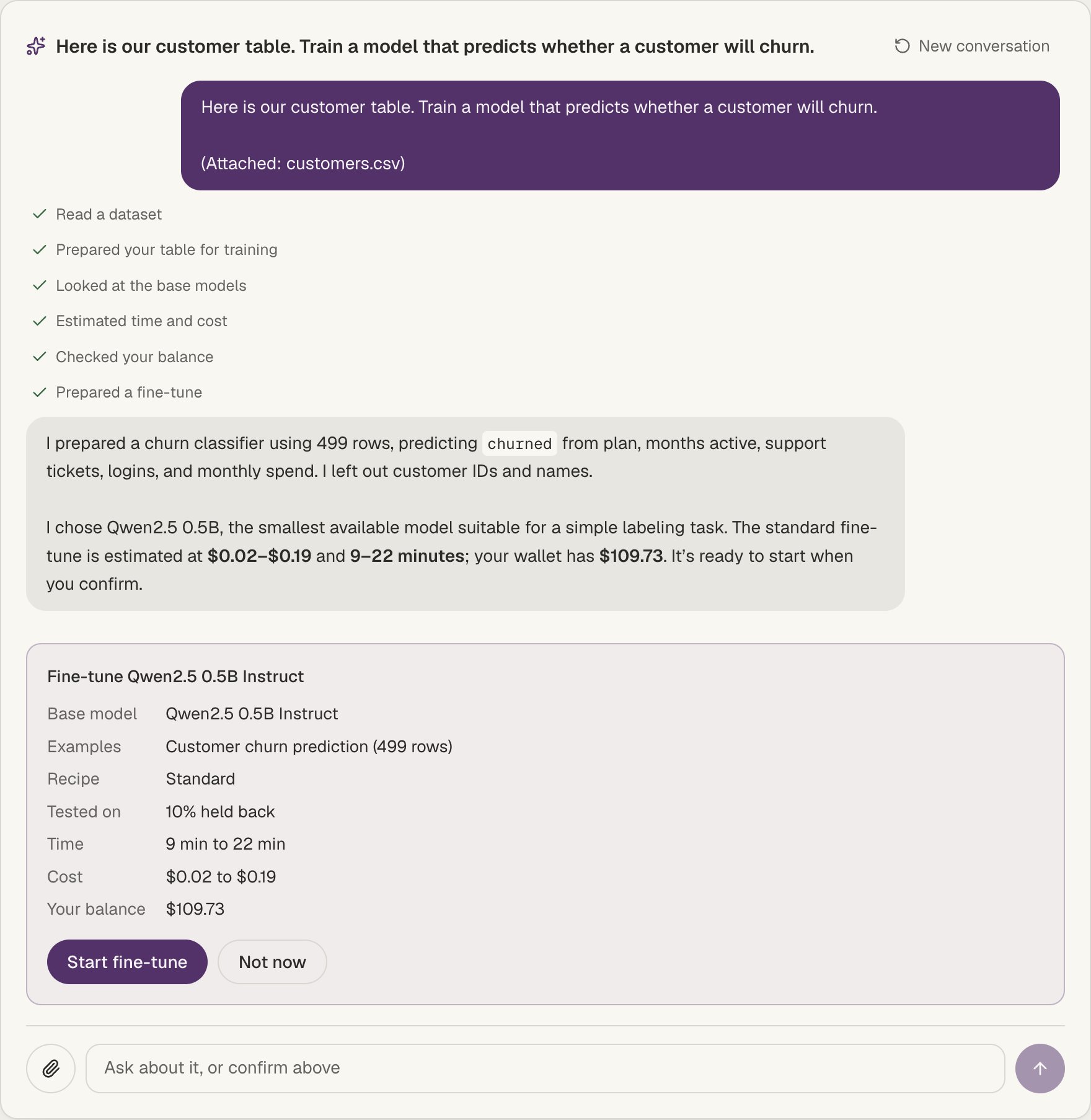
The AI assistant is a chat on [Home](/dashboard/overview#home) that works through
Valkyrie for you. Tell it what the model should get better at, attach your data if
you have it, and it builds the training data, picks a base model, prices the run and
prepares the fine-tune. **Nothing that costs money happens until you confirm.**
 ## Start a conversation
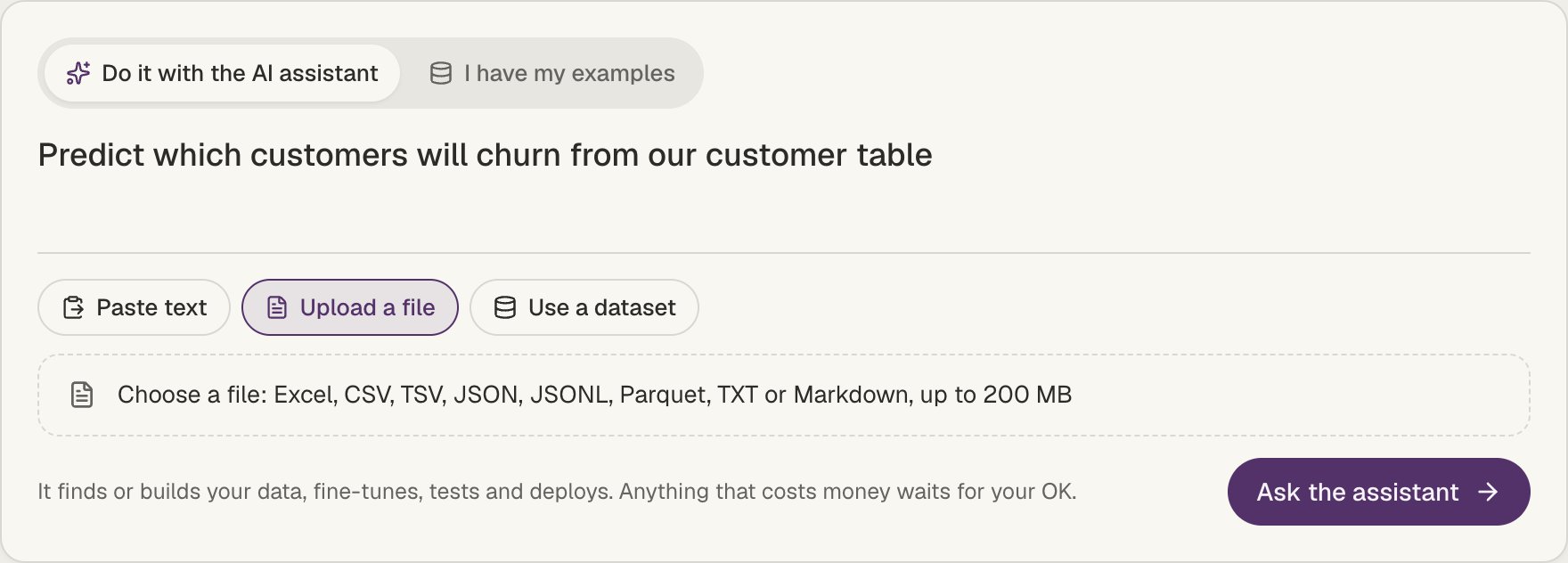
Make sure **Do it with the AI assistant** is selected at the top of the box.
Write it in your own words, for example "Train a model that predicts which
customers will churn" or "Answer our customers the way our support team does".
Use **Upload a file**, **Paste text**, or **Use a dataset**. You can attach more on
any later message with the paperclip.
Click **Ask the assistant**. Each step it takes shows as a short line in the chat,
with a link to anything it created.
## Start a conversation
Make sure **Do it with the AI assistant** is selected at the top of the box.
Write it in your own words, for example "Train a model that predicts which
customers will churn" or "Answer our customers the way our support team does".
Use **Upload a file**, **Paste text**, or **Use a dataset**. You can attach more on
any later message with the paperclip.
Click **Ask the assistant**. Each step it takes shows as a short line in the chat,
with a link to anything it created.
 ## What you can attach
Files can be up to 200 MB:
* **Tables**: Excel (.xlsx, .xls), CSV, TSV, JSON, JSONL and Parquet. A table is saved
as one of your [datasets](/dashboard/data).
* **Text**: TXT and Markdown, such as an FAQ, policies or past replies.
You can also start from one of your datasets or an
[example set](/dashboard/data#start-from-an-example-set), or attach nothing and describe the task.
## What it can do
* **Turn a table into training data**: attach a table and say which column to
predict, for example "predict whether a customer churns". The assistant converts
every row exactly, leaves out columns like IDs and names, and uses the column's
values as labels (or as answers, for numbers and free text).
* **Build a dataset from text**: from an FAQ or policies, it writes question and
answer examples using only facts from your material. This runs in the background
for a few minutes.
* **Pick a base model** from the ones Valkyrie has tested, and say why.
* **Tell you the time and cost** of a fine-tune, and your wallet balance.
* **Start the fine-tune**, then tell you how it is going and, when it is done, how
much better it got against the base model. See
[Test results](/dashboard/models#test-results).
* **Deploy it** as an endpoint, running until you stop it or on office hours.
## You stay in control
Before a fine-tune or a deploy, the assistant shows a card with the model, the data,
the time, the cost and your balance. It only starts when you click **Start
fine-tune** or **Deploy**, and **Not now** cancels it.
Your conversation stays in the page address, so you can leave and come back, and
**Pick up where you left off** under the box lists your recent conversations.
**New conversation** starts over.
## Prefer to do it yourself?
Switch Home to **I have my examples**, or open
[New fine-tune](/dashboard/fine-tuning) from the top bar. The
[Fine-tune a model](/guides/fine-tuning) guide covers both ways.
Where the assistant isn't available yet, Home opens on **I have my examples**, and
**Do it with the AI assistant** shows a padlock with a link back to your own
examples.
This documentation is built and hosted on [Mintlify](https://mintlify.com), a developer documentation platform.
## What you can attach
Files can be up to 200 MB:
* **Tables**: Excel (.xlsx, .xls), CSV, TSV, JSON, JSONL and Parquet. A table is saved
as one of your [datasets](/dashboard/data).
* **Text**: TXT and Markdown, such as an FAQ, policies or past replies.
You can also start from one of your datasets or an
[example set](/dashboard/data#start-from-an-example-set), or attach nothing and describe the task.
## What it can do
* **Turn a table into training data**: attach a table and say which column to
predict, for example "predict whether a customer churns". The assistant converts
every row exactly, leaves out columns like IDs and names, and uses the column's
values as labels (or as answers, for numbers and free text).
* **Build a dataset from text**: from an FAQ or policies, it writes question and
answer examples using only facts from your material. This runs in the background
for a few minutes.
* **Pick a base model** from the ones Valkyrie has tested, and say why.
* **Tell you the time and cost** of a fine-tune, and your wallet balance.
* **Start the fine-tune**, then tell you how it is going and, when it is done, how
much better it got against the base model. See
[Test results](/dashboard/models#test-results).
* **Deploy it** as an endpoint, running until you stop it or on office hours.
## You stay in control
Before a fine-tune or a deploy, the assistant shows a card with the model, the data,
the time, the cost and your balance. It only starts when you click **Start
fine-tune** or **Deploy**, and **Not now** cancels it.
Your conversation stays in the page address, so you can leave and come back, and
**Pick up where you left off** under the box lists your recent conversations.
**New conversation** starts over.
## Prefer to do it yourself?
Switch Home to **I have my examples**, or open
[New fine-tune](/dashboard/fine-tuning) from the top bar. The
[Fine-tune a model](/guides/fine-tuning) guide covers both ways.
Where the assistant isn't available yet, Home opens on **I have my examples**, and
**Do it with the AI assistant** shows a padlock with a link back to your own
examples.
This documentation is built and hosted on [Mintlify](https://mintlify.com), a developer documentation platform.