
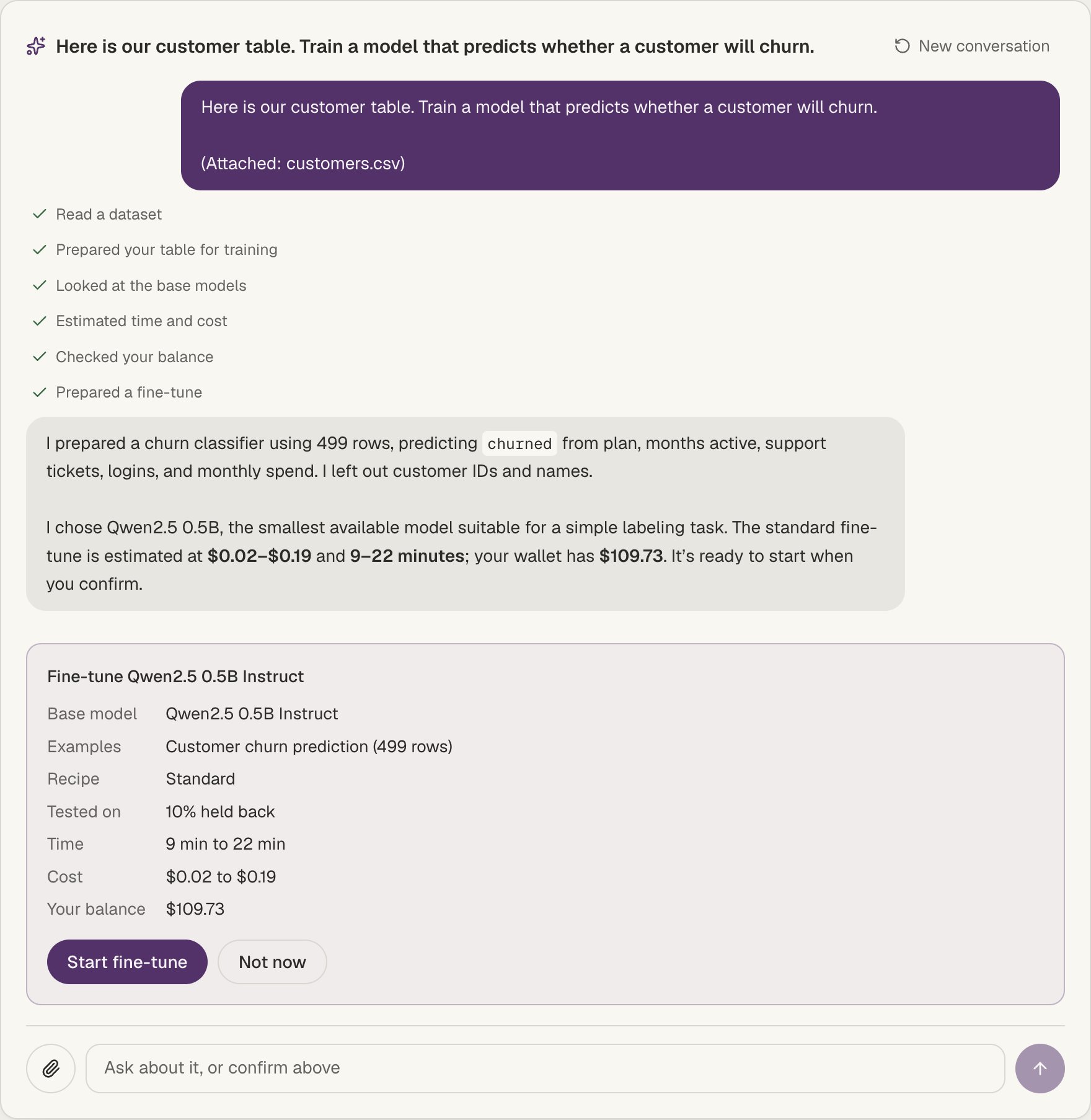
Attach a table, say what to predict, and confirm the fine-tune.
Start a conversation
1
Open Home
Make sure Do it with the AI assistant is selected at the top of the box.
2
Say what you need
Write it in your own words, for example “Train a model that predicts which
customers will churn” or “Answer our customers the way our support team does”.
3
Attach your data
Use Upload a file, Paste text, or Use a dataset. You can attach more on
any later message with the paperclip.
4
Ask the assistant
Click Ask the assistant. Each step it takes shows as a short line in the chat,
with a link to anything it created.
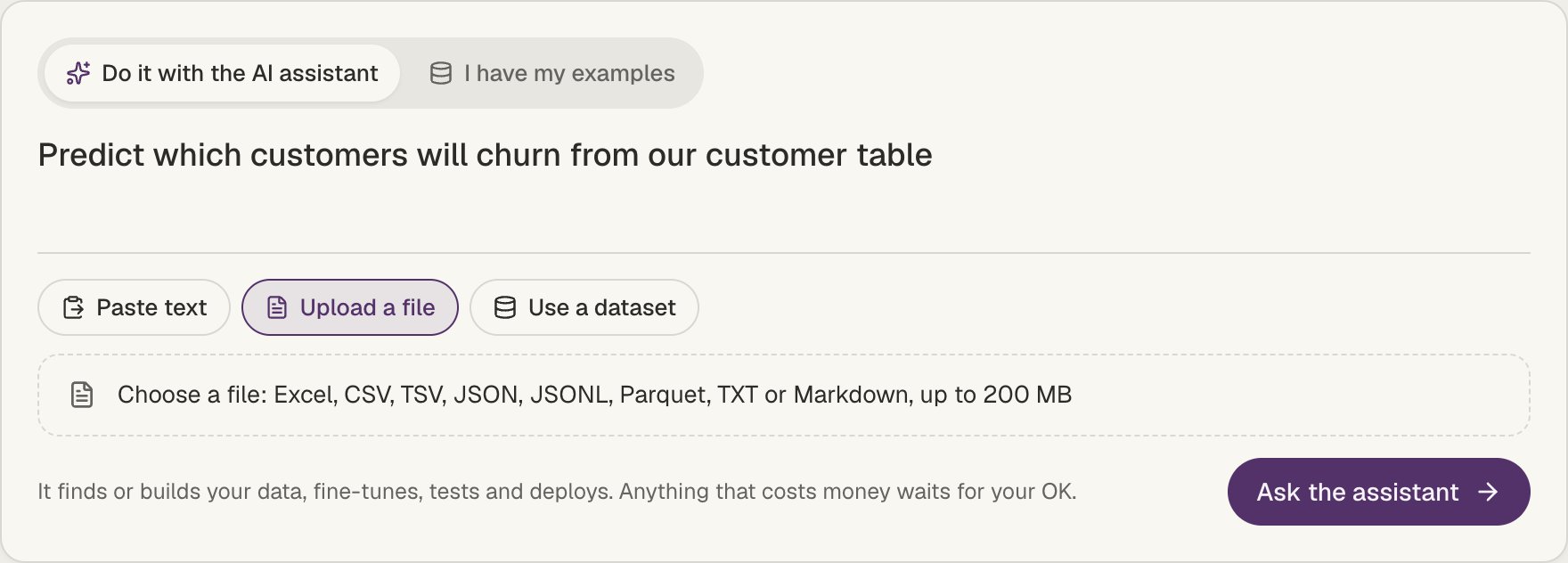
Say what you need, attach your data, and ask the assistant.
What you can attach
Files can be up to 200 MB:- Tables: Excel (.xlsx, .xls), CSV, TSV, JSON, JSONL and Parquet. A table is saved as one of your datasets.
- Text: TXT and Markdown, such as an FAQ, policies or past replies.
What it can do
- Turn a table into training data: attach a table and say which column to predict, for example “predict whether a customer churns”. The assistant converts every row exactly, leaves out columns like IDs and names, and uses the column’s values as labels (or as answers, for numbers and free text).
- Build a dataset from text: from an FAQ or policies, it writes question and answer examples using only facts from your material. This runs in the background for a few minutes.
- Pick a base model from the ones Valkyrie has tested, and say why.
- Tell you the time and cost of a fine-tune, and your wallet balance.
- Start the fine-tune, then tell you how it is going and, when it is done, how much better it got against the base model. See Test results.
- Deploy it as an endpoint, running until you stop it or on office hours.
You stay in control
Before a fine-tune or a deploy, the assistant shows a card with the model, the data, the time, the cost and your balance. It only starts when you click Start fine-tune or Deploy, and Not now cancels it. Your conversation stays in the page address, so you can leave and come back, and Pick up where you left off under the box lists your recent conversations. New conversation starts over.Prefer to do it yourself?
Switch Home to I have my examples, or open New fine-tune from the top bar. The Fine-tune a model guide covers both ways.Where the assistant isn’t available yet, Home opens on I have my examples, and
Do it with the AI assistant shows a padlock with a link back to your own
examples.