
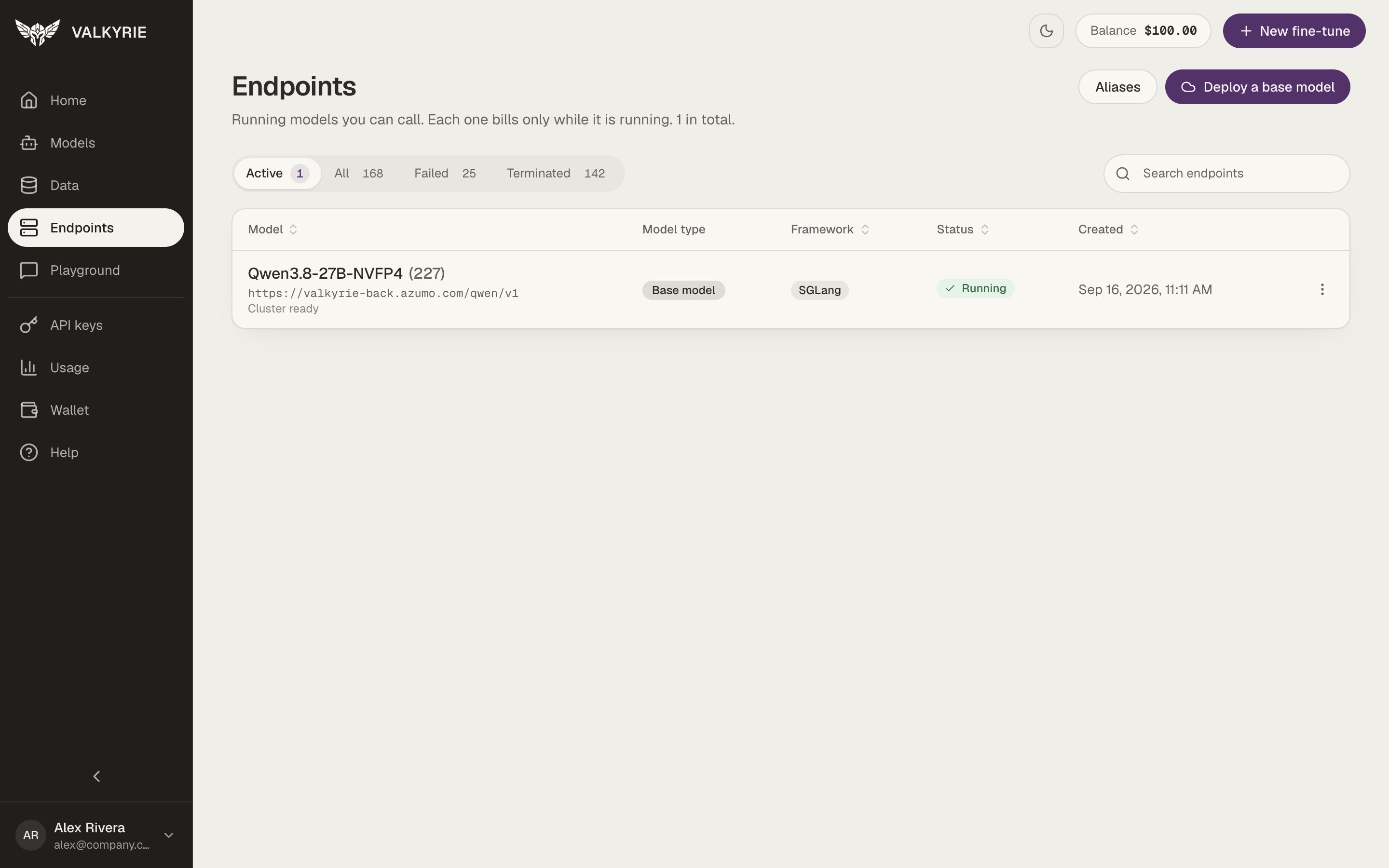
Endpoints: every deployment, with its URL, type, and status.
The endpoints list
Tabs filter by Active, All, Failed, and Terminated, each with a count. Search by name to find an endpoint across every page, and click a column header to sort your whole list. Each row shows:
The buttons at the top right open Aliases and Deploy a base model.
Deployment stages
An endpoint is only ready to use once it reaches Running. While it starts, it passes through:Large models can take a while to start. If an endpoint is still starting after 25
minutes, the dashboard shows Taking longer than usual. If the machine never
becomes reachable, Valkyrie stops it automatically about 20 minutes after it comes
up, with an error that explains why, so you are not billed for a machine you
cannot use.
Endpoint detail
Click an endpoint to open it. The page has three tabs: Overview, Webhooks, and Access.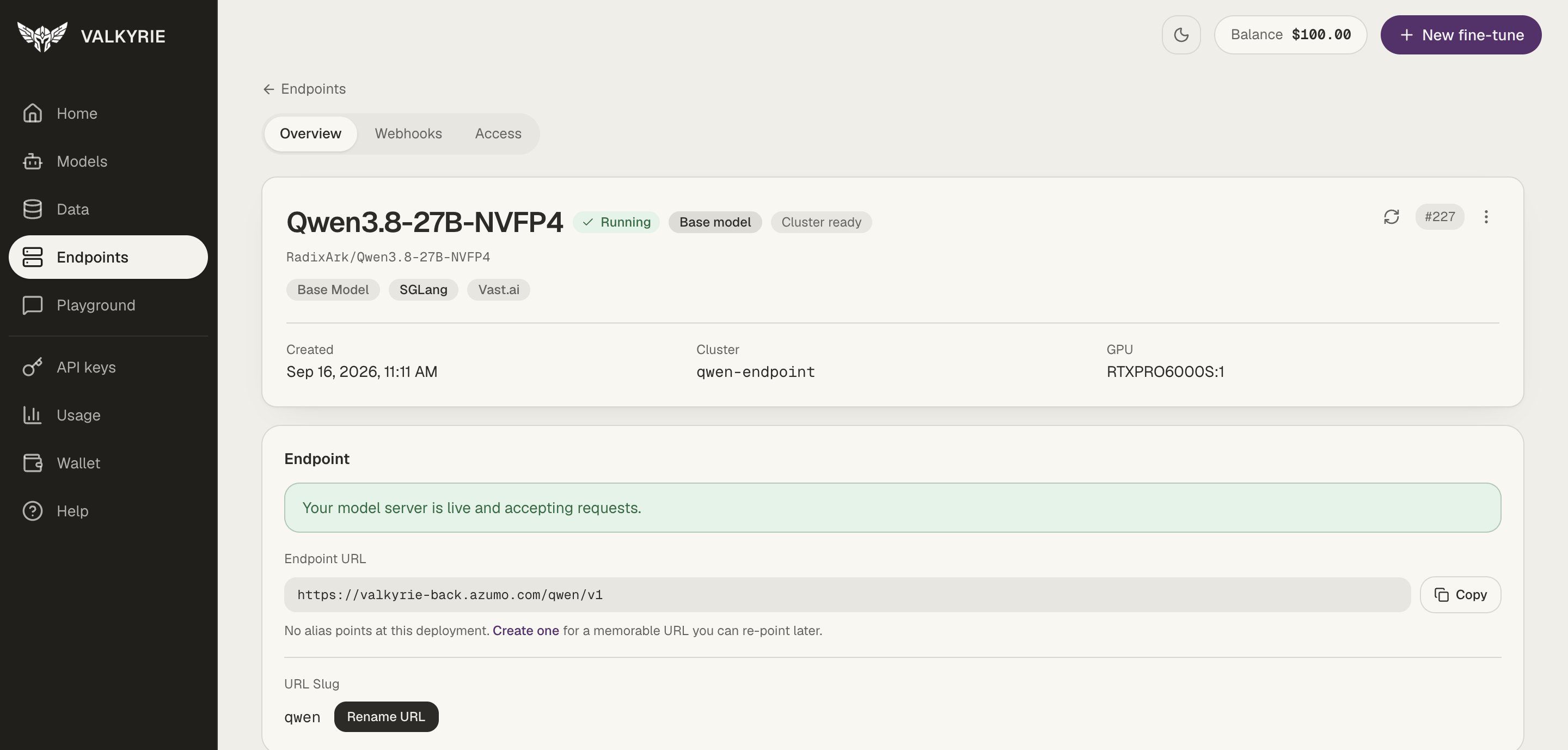
An endpoint's Overview tab, with its URL ready to copy.
- The Endpoint URL with a Copy button.
- The alias pointing at it, or a Create one link if there is none.
- The URL slug, which you can change with Rename URL.
Operate an endpoint
Share an endpoint
On the Access tab you can grant teammates access by email. The owner can see who has access and which keys each person holds, and can revoke access, which invalidates the keys tied to that grant. Endpoints shared with you are marked in the list and when you create a key.Deploy a base model
A base model is served as it is, with no fine-tune. Open Deploy a base model from Endpoints, from Home (“No fine-tune needed? Deploy a base model as it is”), or from the Models list.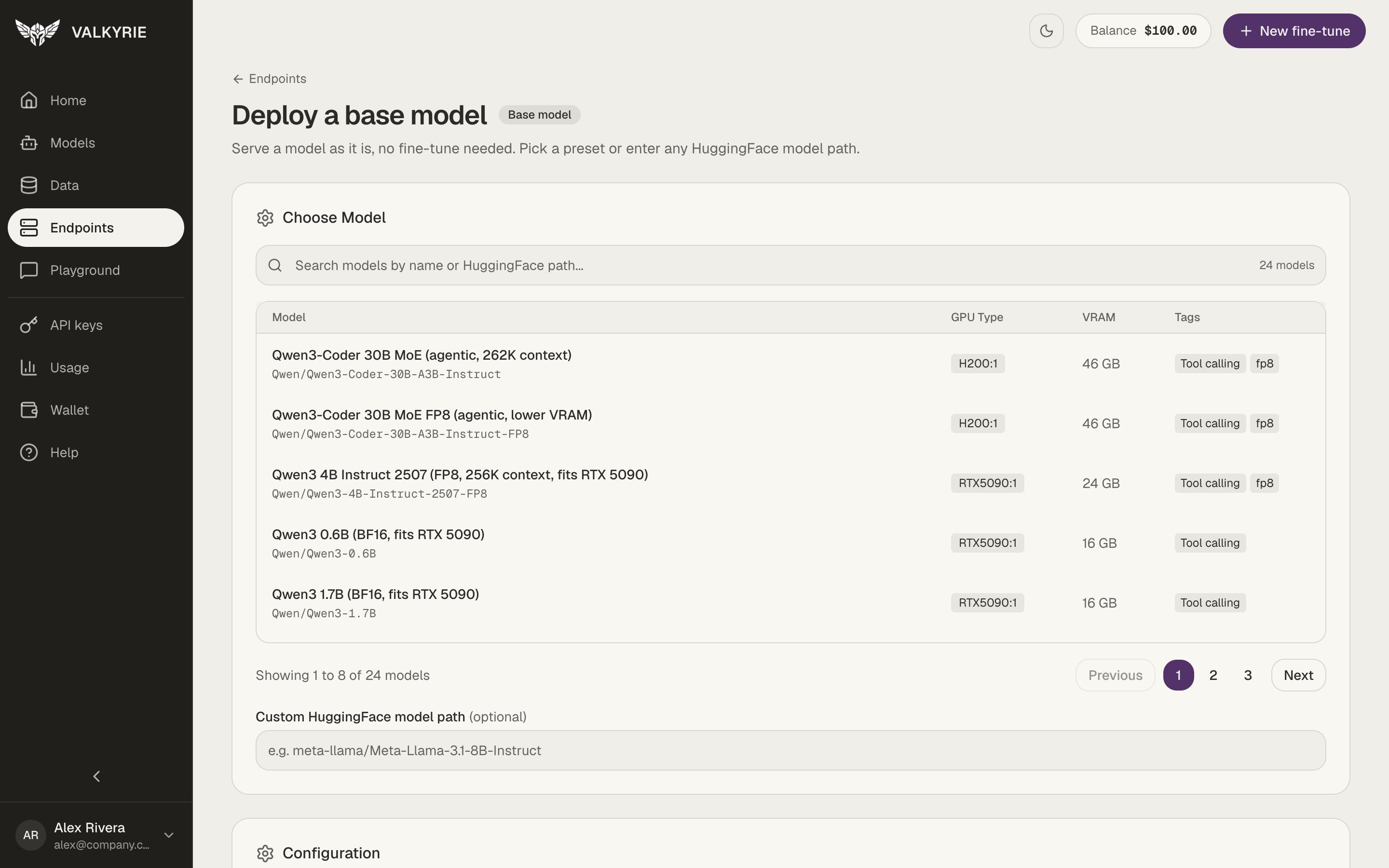
Deploy a base model: pick a preset or enter any Hugging Face model path.
1
Choose the model
Search the presets by name or Hugging Face path. Each preset shows the GPU type
it needs, its memory, and tags such as tool calling. Or enter any Custom
HuggingFace model path.
2
Configure and deploy
Review the configuration, add an optional alias, and deploy. You land on the new
endpoint’s page, where you can follow its stages to Running.
Deploy a fine-tuned version
When a version on Models has completed, click Deploy to open its deploy page.1
Pick the serving settings
Under Serving settings, choose the Hardware from a GPU list that shows
the price per hour and the memory per card. Choose the Engine: vLLM
(recommended) or Ollama. The Advanced section lets you set the context
length, memory use, and an optional cluster name. Traffic-based run tiers (“How
much traffic?”) are marked Coming soon.
2
Check the summary
The Summary shows the model, hardware, engine, and Cost while running
per hour. Billed from your wallet while the endpoint runs. Stop it any time from
its page.
3
Deploy
Click Deploy endpoint. You land on the new endpoint’s page.
Call the endpoint
A ready endpoint exposes an OpenAI-compatible API at its URL (/{deployment_slug}/v1/...). Attach an alias for a memorable
URL, try it first in the Playground, and see
Run inference for request examples.