
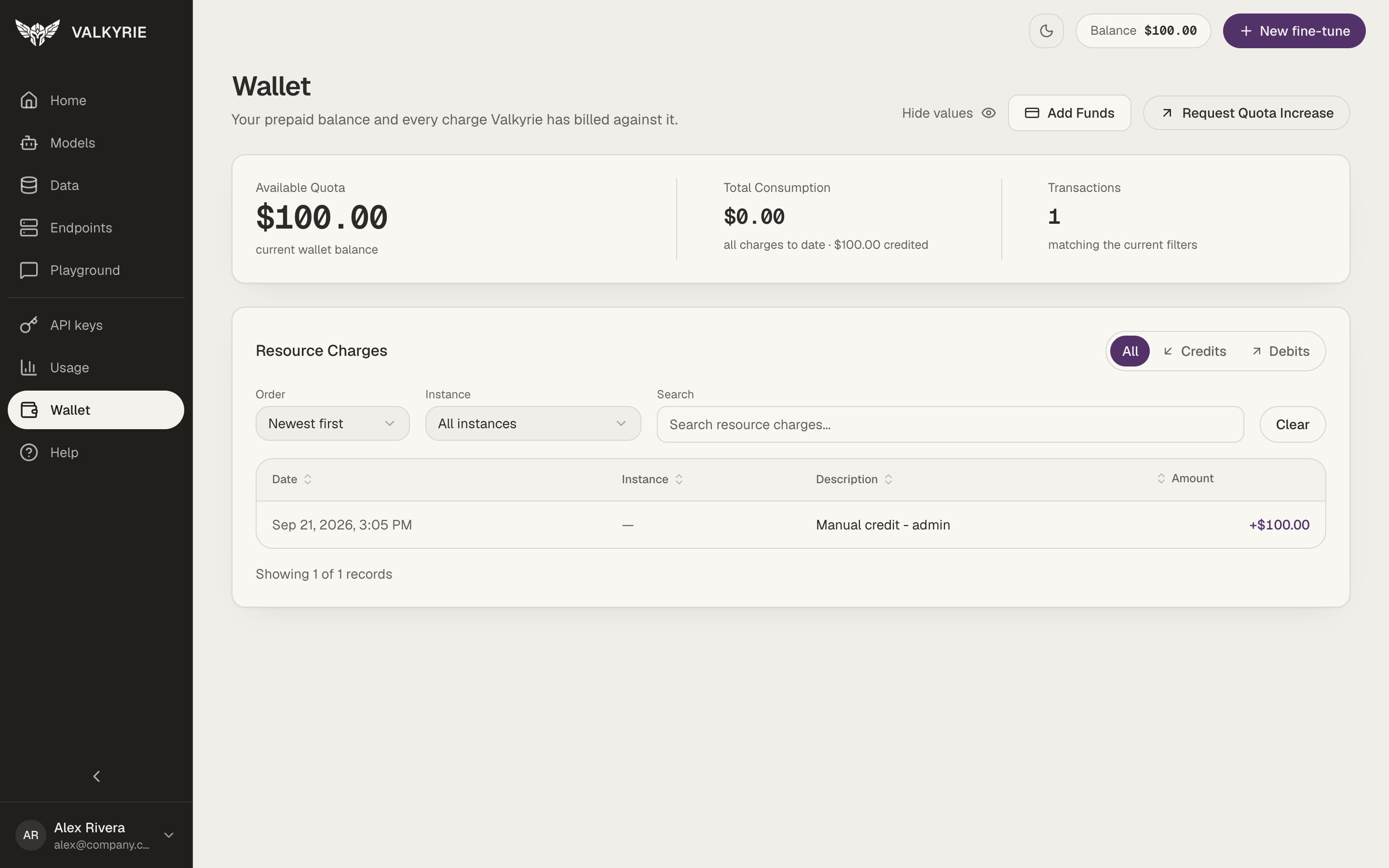
Wallet: balance, consumption, and resource charges.
Each workspace has its own wallet, and this screen shows the
one for the workspace you’re in. The Wallet now lives under Settings at
/settings/billing. Old links to /quota, including the return from a Stripe
payment, still land here.The headline cards
A Hide values toggle blanks the amounts for screen-sharing. Add Funds opens a
self-serve top-up by card through Stripe; it’s shown to Owners, Admins, and Billing
members. Request more credit emails the Valkyrie team for a larger or custom
amount. See Adding funds for the full
walkthrough.
Spend limits
The Spend limits card shows this month’s spend against the workspace’s monthly cap (Whole workspace) and against each team’s cap, as bars. Owners, Admins, and Billing members can click Edit limits to set the Workspace monthly cap and a cap per team. Leave a field empty for No cap. A team’s cap can’t be higher than the workspace cap. If you lower the workspace cap below some team caps, Valkyrie asks you to lower those team caps too and saves everything together. See Spend limits for what happens when a cap is reached.Resource charges
The Resource Charges table lists every credit and debit, filterable by All / Credits / Debits, orderable, filterable by instance, and searchable. Each row shows the date, the instance the charge came from, a description (for example an instance’s final hourly charge, or the disk of a paused endpoint), and the amount. It’s the full history behind your balance.Charges are per use: an endpoint’s GPU time is billed while it runs, and a paused
endpoint’s disk while it’s paused. Stopping endpoints you don’t need is the main
lever on your spend; see Endpoints and
Always-on and idle stop.